

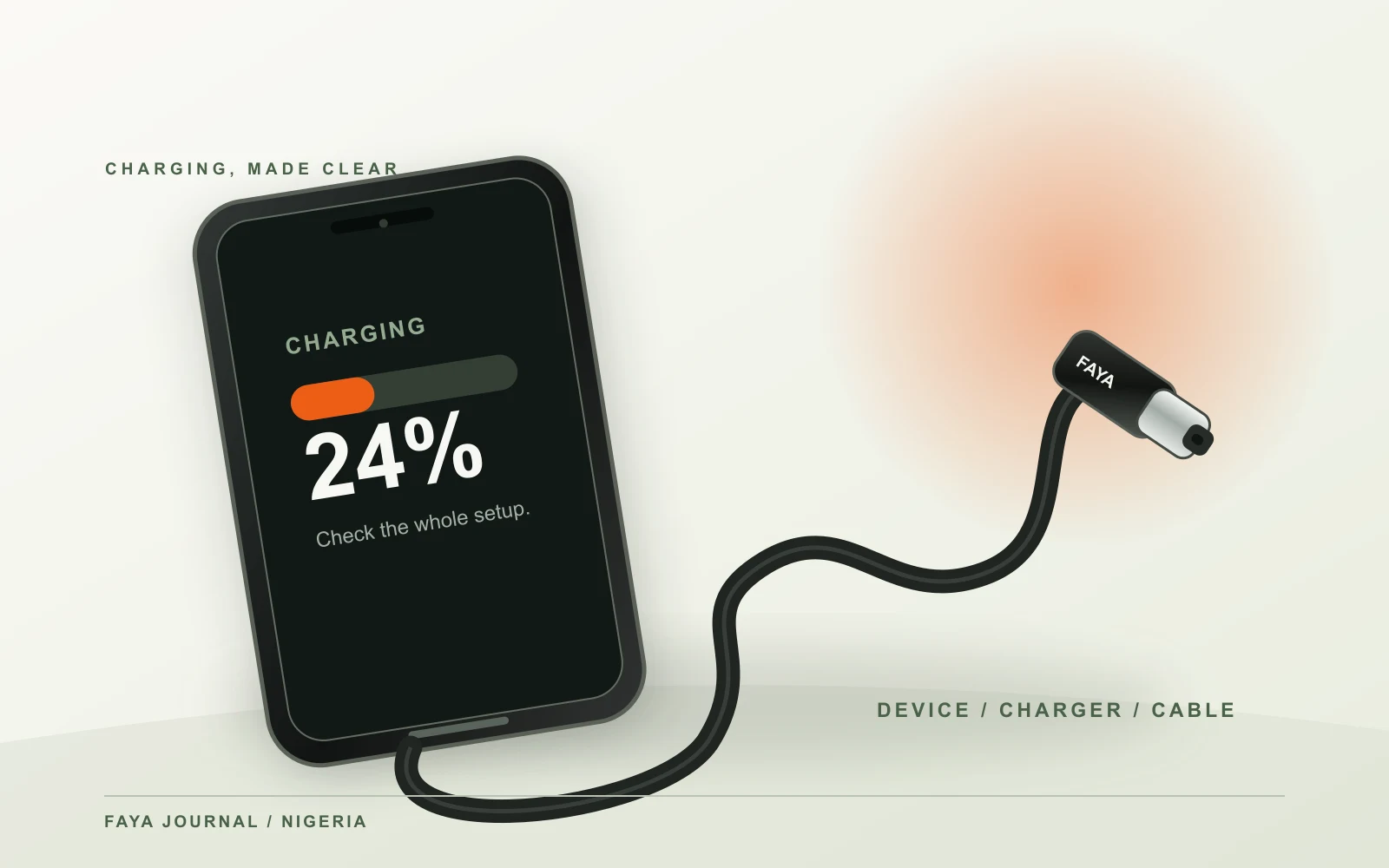
Why is my phone charging slowly? It is a familiar question when a device that used to gain charge quickly suddenly needs hours. The tempting response is to buy a new cable immediately. That may help, but it may also leave the real problem untouched. Your device, power source, charger, cable, connector and charging settings form one system. A useful diagnosis changes one part of that system at a time and observes what actually improves. This guide explains a safe, repeatable way to do that, whether you charge from a wall socket, a power bank or a computer in Nigeria.
First, decide whether it is slow charging or no charging
Before replacing anything, look at the phone. Is the battery percentage rising, holding steady or falling while connected? Does the phone display a charging symbol, a “slow charger” warning, a moisture warning or no sign of power at all? If the battery is rising slowly, the phone is receiving some power. If it stays flat or falls during use, it may be receiving less than it consumes. If there is no charging symbol, investigate the connection before worrying about charging speed. Keep a note of the exact message; it is more useful than “the charger is bad” when you contact support.
Make one comparison under similar conditions. Note the starting battery percentage, wait fifteen minutes with the screen mostly off, then note the new percentage. Repeat after changing just one component. The percentage is not a laboratory wattmeter and it will not rise at a constant rate, but a consistent comparison can expose a large difference. Compare a low-to-mid battery level with another low-to-mid level. Testing one setup at 15% and another at 93% can mislead you because many phones deliberately slow down as the battery fills.
If your phone is not charging at all, move straight to the safe connection checks below. A phone that remains unresponsive after a known-good charger, cable and outlet have been tried may need device support rather than another accessory. Do not repeatedly connect damaged equipment or continue testing a phone that shows a moisture or temperature warning.
Understand the three-part power match
The wattage printed on a charger is its possible output under specified conditions, not a promise of what your phone will take. Your phone decides what it can accept. The charger must offer a compatible charging mode. The cable must have suitable connectors and current capacity. With USB Power Delivery, the devices communicate to select a supported power level; a 65W charger does not simply push 65W into every connected phone. The USB Implementers Forum's explanation of Power Delivery is a useful starting point if you want to understand the standard behind the label.
Check your exact phone model rather than relying on “Android” or “iPhone”. Model generations can have different ports and charging requirements. For example, Apple says faster wired charging on iPhone 15 and later uses a USB-C cable and a compatible USB-C Power Delivery adapter; earlier Lightning iPhones need a different cable. Google likewise notes that a Pixel may charge more slowly through a USB-A adapter and USB-A-to-USB-C cable than through a suitable USB-C setup. These are model-specific examples, not a universal speed claim for any cable.
Look at the output label on the adapter, not just the largest number on its box. A dual-port charger may advertise a combined total, while each port has a lower individual limit or changes output when both ports are occupied. If the phone used to charge quickly when it was the only connected device, disconnect the second device and retest the same charger and port. If speed returns, the shared power budget or port allocation may explain the difference. Check the charger's printed port-sharing table before deciding that a cable has failed.
Start with the power source
Use a known-working wall socket and a compatible wall adapter for the first comparison. A laptop's USB port, an older power bank, a car socket or an unlabelled hub may provide a different amount of power. That does not make those sources defective. It makes them poor baselines for judging the cable. Samsung's Africa support notes that a Galaxy may not enter fast-charging mode when connected to a PC or another USB source that does not support that mode. Start with the most straightforward connection and add the other parts back only after you have a baseline.
In Nigeria, it is common to switch between mains power, an inverter, a generator and a power bank during a day. Treat the charging source as one of the variables in your test. If a wall adapter works normally on a reliable outlet but the phone charges slowly from a power bank, check the power bank's output specification and its current charge level. If a source appears unstable, stop using it and have it checked by a qualified professional. A cable cannot correct an unsafe socket or a faulty supply.
Do not assume a plug adapter changes the electrical specification of a charger. Check the charger's input range and the plug that fits the local socket before use. If the charger or socket is visibly damaged, hot in an unusual way, loose or smells of burning, stop the test. Charging advice is not a reason to keep experimenting with questionable electrical equipment. The simple goal is to establish whether the phone charges normally from a suitable known-good source.
Inspect the cable and both connections
Unplug the charger and inspect the cable in good light. Look for torn insulation, exposed conductor, a crushed section, a bent plug or a connector that no longer sits securely. Replace a cable with visible damage. Do not hold it in a particular position to “make it work”; intermittent contact can hide the underlying problem. Also check that the USB-C plug fits fully into both the phone and charger. A case can sometimes prevent a plug from seating properly, so remove the case for one controlled test if the connector looks obstructed.
Try a known-good, compatible cable with the same charger and phone. Keep the outlet, adapter, battery range and phone use similar. If the second cable consistently performs better, the first cable or its connector becomes a stronger suspect. If both behave the same, look at the charger, port, device settings or temperature before buying a third cable. If you have a second known-good adapter, repeat the comparison while keeping the cable fixed. Changing one item at a time produces a useful answer; replacing everything at once does not.
A fast charging cable still has to match the setup. The FAYA 2m USB-C to USB-C cable pack contains three cables rated up to 60W at 20V/3A. That makes it a practical option for compatible USB-C devices within that rating, with one cable for a desk, another for a bedside and a spare for a bag. It does not add Power Delivery to an incompatible charger, change the phone's limit or support a mode that needs a 5A cable. Check the exact device requirement first; if it asks for a different current rating, choose that rating instead.
Check the charging port without damaging it
Lint or dirt can prevent a connector from seating, especially when a phone spends time in a pocket or bag. With the device disconnected, use a light to look into the port. Do not insert metal objects or pour liquid into it. Follow the phone maker's instructions for cleaning and stop if the connector or port looks bent, corroded or loose. Samsung Africa lists debris and moisture among causes of wired charging problems and advises professional help for a blocked port. If the phone shows a moisture warning, disconnect it and follow the manufacturer's drying instructions rather than trying to override the warning.
The feel of the connection matters as evidence. A plug that never seats fully, repeatedly falls out or only works when pushed sideways points toward a mechanical issue. Test a known-good cable, but do not force a tight plug. If several known-good cables behave the same way with one phone, the phone's port may need inspection. Replacing cables repeatedly is unlikely to fix a damaged device connector. Describe the connection behaviour when you contact the phone manufacturer or an authorised repairer.
Consider temperature, battery level and settings
Charging speed is not constant from empty to full. Apple explains that iPhone charging slows after the faster initial phase and may pause in extreme temperature conditions. Apple also says an iPhone may show a “Slow Charger” message when the connected charger cannot provide optimal power. Google says some Pixel phones adjust charging to manage battery and device temperature. A phone can therefore charge more slowly without any cable fault. Compare at similar battery levels and check the phone's own battery screen before drawing conclusions.
Heat is particularly relevant when a phone is in direct sunlight, used for navigation or gaming, or left on a warm surface while charging. Move it to a cooler, well-ventilated place, let it return to a normal temperature naturally and then retry. Do not put the phone in a fridge or freezer. If a case makes the device unusually warm, remove it for a test. A temperature warning is protective behaviour. Give the phone time; do not bypass it to chase a faster percentage increase.
Check device settings using the maker's current instructions for your model. Some phones have scheduled, adaptive or battery-preserving charging features. Samsung's Africa support also describes fast-charging settings for compatible Galaxy models, although menu names vary by device and software. Review the settings before buying accessories. If a feature is intentionally limiting charging overnight, that is a different situation from a cable that fails in the middle of the day. A software update, background activity or an ageing battery can also change the experience; manufacturer diagnostics are more reliable than guessing from a single charge.
Compare wired charging with power banks and computers
A power bank's advertised capacity in mAh is not the same thing as its maximum output in watts. Read the output shown next to the actual port you use. Some banks have one high-power USB-C port and a lower-power USB-A port. Others divide output when multiple devices are attached. Test the phone alone, using a cable that matches the port, and compare with a suitable wall adapter. If only the power bank is slow, its output mode or remaining battery level deserves attention before the phone does.
A computer port is useful for topping up, file transfer or emergencies, but it is a poor benchmark for a wall charger's fast-charging performance. The available power can depend on the computer, port, sleep state and attached devices. If the phone charges slowly through a laptop but normally from a wall adapter, that observation may be expected. Likewise, a USB-A charging path can behave differently from a USB-C Power Delivery path. Note the actual source whenever you compare charge times; “same cable” does not mean “same power”.
When a replacement cable is the right next step
Buy a replacement after a controlled swap points to the cable, or immediately if the cable is visibly damaged. Match the phone's connector and charging requirements. For a USB-C phone, confirm whether you need USB-C to USB-C or USB-A to USB-C based on the charger you already own. If a device needs a special 5A mode, a 3A/60W cable is not a substitute. If you also need fast data transfer or video output, check those specifications separately; a charging wattage does not prove either capability.
Length is a practical choice, not an automatic speed upgrade. A two-metre cable can make a bedside or desk setup more comfortable when the wall socket is distant. Keep the cable free from tight bends, avoid pulling a device by the cord and choose enough slack that the phone does not hang from its port. For a compatible 60W USB-C setup, the FAYA three-cable pack gives you a consistent cable in more than one place. If your charging problem follows one particular adapter, replacing the cable is unlikely to be the useful purchase.
A five-minute test you can repeat
Write down your phone model, current battery percentage, charger model, charger output and the cable you are using. Connect directly to a suitable working wall socket. Put the phone down with the screen mostly off and note the battery percentage after fifteen minutes. Keep the battery range similar for the comparison. Swap only the cable for a known-good compatible one and repeat. If there is no meaningful difference, return to the first cable and change only the adapter. Then check the phone's charging message, temperature and settings. This short record can prevent unnecessary purchases and gives support staff something concrete to work with.
If you cannot make a fair comparison because power is interrupted, pause the test and try again when you have a stable source. If the phone stops charging when moved, record that fact rather than repeatedly bending the connector. If a moisture alert appears, stop and follow device instructions. These observations tell you where to look next. They are not a substitute for an electrical inspection or device repair, and they should never encourage use of equipment that looks unsafe.
Frequently asked questions
Why is my phone charging slowly even with a 65W charger?
The charger rating is a maximum under stated conditions. Your phone may accept less, may require a particular charging protocol, or may limit charging because of battery level or temperature. A second device on a shared charger can change port output too. Check the adapter's single-port specification, the phone's model requirements and the charging message on the phone before blaming the cable.
Can a damaged cable make a phone not charging at all?
Yes, a broken conductor or poor connector contact can interrupt charging, but a faulty adapter, socket or device port can cause the same symptom. Stop using a visibly damaged cable. With safe, known-good parts, change only one component at a time. If the phone remains unresponsive after the cable, adapter and outlet are checked, seek device support.
Does a 60W cable make my phone charge at 60W?
No. The rating states what the cable can support within its specified current and voltage. The phone and compatible charger determine the actual charging power. A 60W cable can be suitable for many lower-power devices without forcing 60W into them. Some modes require a 5A cable even when the headline wattage seems lower, so check the exact manufacturer's specification.
Why is charging slower after 80%?
Many phones intentionally slow charging as the battery approaches full capacity. Apple describes a faster phase followed by slower charging after about 80% on iPhone; other devices have their own charging controls. Compare two setups at similar battery levels rather than comparing one at 20% with another at 90%. If the device reports a temperature issue, allow it to cool naturally.
Is a phone charging slowly from a laptop a cable problem?
Not necessarily. The laptop port may offer less power or a different charging mode than a wall adapter. Test the same phone and cable with a suitable USB-C wall charger. If wall charging is normal, check the laptop port's specification before replacing the cable. Keep data-transfer requirements separate from charging requirements when choosing a new cable.
Sources and further reading
The checks above follow guidance from Google Pixel Help on charging accessories, Google Pixel Help on a phone that will not charge, Samsung Africa on wired charging issues, Apple on iPhone charging behaviour, Apple on temperature-limited charging and the USB Implementers Forum's Power Delivery overview. Check your exact model's current manual for its charging modes, warnings and support options.